


3.2.28. Grandstream HandyTone-502
1. Introduction


2. Glossary
3. Technical Specifications
4. Hardware Specifications
5. Accounts configuration
Before going further reading this tutorial make sure you have an Asterisk server and you are familiar with adding users to Asterisk. If you are not aware of this issue you can read the tutorial explaining how to add new users to asterisk.
Grandstream HandyTone-496 is working with the SIP (Session Initiation Protocol). You will have to create a SIP user. Open /etc/asterisk/sip.conf and add the user at the bottom at the file. Since the ATA supports more than one line we will create two accounts for the ATA:
Then reload Asterisk's SIP configuration by executing the command:

At one point we will want to receive calls on our phone, that's why we have to create an extension for this. This may be achieved by adding extension `1001` in our default context in extensions.conf configuration file, located at /etc/asterisk. We will also create an extension `1002` which will dial the second account:
We will have to reload our Asterisk extension configuration in order for the changes to take effect. We can easily achieve this by typing:
We will offer two voicemail accounts for each of our SIP accounts. In order to do that we will have to edit voicemail.conf. Here are the lines that we have to add:
You will have to make some modifications in the dialplan in order the voicemail to work properly. First we’ll add Voicemail application in the part where we dial the two accounts:
Then we'll create two extensions which purpose will be to check the mailboxes accounts. Here are the lines that we are going to add to extensions.conf:
We will have to reload the dialplan and the voicemail configuration in order for the changes to take effect. We will achieve this by using the command:
asterisk –rx “reload”
You can download the complete configuration files from our server:
6. Interactive Voice Response (IVR)
7. Call Features
8. Configuration
• From the LAN port:
• From the WAN port:
The WAN port HTML configuration option is disabled by default from factory. To access the HTML configuration menu from the WAN port:
End User Level: (Only Status and Basic Settings)
password: 123
Administrator Level (Browse all pages)
password: admin
Log in Page:

Basic Settings (part1):

Basic Settings (part2):

Basic Settings (part3):

Status page:

Advanced Settings (part1):

- Select the HT-502 to report the log level. Default is NONE. The level is one of DEBUG, INFO, WARNING or ERROR. Syslog messages are sent based on the following event:
FXS Port1 (part1):

FXS Port1 (part2):

FXS Port1 (part3):

FXS Port1 (part4):

FXS Port1 (part5):

Save Configuration Page

9. Rebooting the phone

By clicking the "Reboot" button at the bottom of the configuration page, you will remotely reboot the HT-502. When it finished, re-login to the HT-502 after waiting for about 30 seconds.
10. Software upgrade
The Firmware upgrade is in the "Advanced Settings configuration page. It can be done via either TFTP or HTTP.
Grandstream SIP Device can be configured via Web Interface or via Configuration File through TFTP or HTTP. "Config Server Path" is the TFTP or HTTP server path for configuration file. It needs to be set to a valid URL, either in FQDN or IP address format. The "Config Server Path" can be the same or different from the "Firmware Server Path".
A configuration parameter is associated with each particular field in the web configuration page. A parameter consists of a Capital letter P and 2 to 3 digit numeric numbers. Sample: P2 associated with "Admin Password" in the "Advanced Settings" page. For a detailed parameter list, please refer to the corresponding firmware release configuration template.
When Grandstream Device boots up or reboots, it will issue a request for configuration file named "cfgxxxxxxxxxxxx", where "xxxxxxxxxxxx" is the LAN side MAC address of the device.
Firmware Prefix and Postfix allows the device to download the firmware name with the matching Prefix and Postfix. This makes it the possible to store ALL of the firmware with different version in one single directory. Similarly, Config File Prefix and Postfix allows the device to download the configuration file with the matching Prefix and Postfix. Thus multiple configuration files for the same device can be stored in one directory.
In addition, when the field "Check New Firmware only when F/W pre/suffix changes" is set to Yes, the device will only issue firmware upgrade request if there are changes in the firmware Prefix or Postfix.
When "Automatic Upgrade" is set to Yes, the Service Provider can use P193 (Auto Check Interval, in minutes, minimum default setting is 60 minutes) to have the devices periodically check with either Firmware Server or Config Server, whenever they are defined. This allows the device to periodically check if there are any new changes need to be taken ot a scheduled time. By defining different intervals in P193 for different devices, the Service Provider can spread the Firmware or Configuration File download in minutes to reduce the Firmware or Provisioning Server load at any given time.
11. Restore Factory Default Settings
1) Locate the button, which is next to the power connection.
2) Insert a pin in this hole, and press for about 10 seconds. The LEDs for LAN and WAN will indicate the reset.
3) All settings are restored to factory settings.
1) Find the MAC address of the device. It is a 12 digits HEX number located on the bottom of the HT-502.
2) Encode the MAC address. Mapping:
Example: if the MAC address is 000b6500efe6, you should encode as "000222650033333333336".
3) To perform factory reset:
The Grandstream HandyTone-502 is a full feature voice and FAX-over IP device that offers a high-level of integration including dual 10M/100Mbps network ports with integrated router, NAT, DHCP server, dual port FXS telephone gateway, market-leading sound quality, rich functionalities, and a compact and lightweight design. It supports various voice codecs: G.711(a/u-law), G.723, G.726(16/24/32/48 bit rates), G.729A/B/E and iLBC.
2. Glossary
* ADSL - Asymmetric Digital Subscriber Line. Modems attached to twisted pair copper wiring that transmit from 1.5Mbps to 9Mbps downstream (to the subscriber) and from 16kbps to 800kbps upstream, depending on line distance.
* ARP - Address Resolution Protocol is a protocol used by the IP (Internet Protocol), IPv4, to map IP network addresses to the hardware addresses used by a data link protocol. The protocol operates below the network layer as a part of the interface between the OSI network and OSI link layer. It is used when IPv4 is used over Ethernet.
* ATA - Analogue Telephone Adapter. Enables analogue telephone to be used in data network for VoIP.
* CODEC - Abbreviation for Coder-Decoder. It is an analog-to-digital (A/D) and digital-to-analog (D/A) converter for translating the signals from the outside world to digital, and back again.
* DATAGRAM - A data packet carrying its own address informaton so it can be independently routed from its source to the destination computer.
* DNS - Short for Domain Name Service, an Internet service that translates domain names into IP addresses.
* DSP - Digital Signal Processor. A specialized CPU used for digital signal processing. All Grandstream products have DSP chips inside.
* DTMF - Dual Tone Multi Frequency. The standard tone-pairs used on telephone terminals for dialing using in-band signalling. The standards define 16 tone-pairs (0-9, #, * and A-F) although most terminals support only 12 of them (0-9, * and #).
* FXO - Foreign eXchange Office. An FXO device can be an analog phone, answering machine, fax, or anything that handles a call from the telephone company.
An FXS interface will accept calls from FXS or PSTN interfaces. All countries and regions have their own standards.
FXS is complimentary to FXS (and the PSTN).
* FXS - Foreign eXchange Station. An FXS uses additional hardware to generate the ring signal to the FXS extension (usually an analog phone).
An FXS device will allow any FXS device to operate as if it were connected to the phone company. This makes your OBX the POTS+PSTN for the phone.
The FXS interface connects to FXS devices (by an FXS interface, of course).
* DHCP - The Dynamic Host Configuration Protocol is an Internet protocol for automating the configuration of computers that use TCP/IP. DHCP can be used to automatically assign IP addresses, deliver TCP/IP stack configuration parameters such as the subnet mask and default router, and to provide other configuration information such as the addresses for printer, time and news servers.
* ECHO CANCELLATION - Echo Cancellation is used in telephony to describe the process of removing echo from a voice communication in order to improve voice quality of a telephone call. In addition to improving quality, this process improves bandwidth savings achieved through silence suppression by preventing echo from travelling across a network. There are two types of echo of relevance in telephony - acoustic echo and hybrid echo. Speech compression techniques and digital processing delay often contribute to echo generation in telephone networks.
* H.323 - A suite of standards for multimedia conferences on traditional packet-switched networks.
* HTTP - Hyper Text Transfer Protocol. The World Wide Web protocol that performs the request and retrieve functions of a server.
* IP - Internet Protocol. A packet-based protocol for delivering data across networks.
* IP-PBX - IP-based Private Branch Exchange.
* IP Telephony (Internet Protocol Telephony, also known as Voice over IP telephony). A general term for the technologies that use the Internet Protocol's packet-switched connections to exchange voice, fax, and other forms of information that have traditionally been carried over the dedicated circuit-switched connections of the Public Switched Telephone Network (PSTN). The basic steps involved in originating an IP Telephony call are conversion of the analog voice signal to digital format and compression/translation of the signal into Internet Protocol (IP) packets for transmission over the Internet or other packet-switched networks; the process is reversed at the receiving end. The terms IP Telephony and Internet Telephony are often used to mean the same; however, they are not 100 per cent interchangeable, since Internet is only a subcase of packet-switched networks. For users who have free or fixed-price Internet access, IP Telephony software essentially provides free telephone calls anywhere in the world. However, the challenge of IP Telephony is maintaining the quality of service expected by subscribers. Session border controllers resolve this issue by providing quality assurance comparable to legacy telephone systems.
* IVR - IVR is a software application that accepts a combination of voice telephone input and touch-tone keypad selection and provides appropriate responses in the form of voice, fax, callback, e-mail and perhaps other media.
* NAT - Network Address Translation.
* PPPoE - Point-to-Point Protocol over Ethernet is a network protocol for encapsulating PPP frames in Ethernet frames. It is used mainly with cable modem and DSL services.
* PSTN - Public Switched Telephone Network. The phone service we use for every ordinary phone call, or called POTS (Plain Old Telephone Service), or circuit switched network.
* RTCP - Real-time Transport Control Protocol. With the RTP it is delivery and packaging of multimedia data, but does not transport any data itself. It is used periodically to transmit control packets to participants in a streaming multimedia session. The primary function of RTCP is to provide feedback on the quality of service being provided by RTP.
* RTP - Real-time Transport Protocol defines a standardized packet format for delivering audio and video over the Internet.
* SDP - Session Description Protocol is a format for describing streaming media initialization parameters.
* SIP - Session Initiation Protocol. SIP is a text-based protocol suitable for integrated voice-data applications. SIP is designed for voice transmission and uses fewer resources while it is considerably less complex than H.323. The Grandstream products are SIP-based.
* STUN - Simple Traversal of UDP over NAT is a network protocol allowing clients behind NAT to find out its public address, the type of NAT it is behind and the internet side port associated by the NAT with a particular local port. This information is used to set up UDP communication between two hosts that are both behind NAT routers. It works with non-symmetric NAT routers.
* TCP - Transmission Control Protocol is one of the core protocols of the Internet protocol suite. Using TCP, applications on networked hosts can create connections to one another, over which they can exchange data or packets. The protocol guarantees reliable and in-order delivery of sender to receiver data.
* TFTP - Trivial File Transfer Protocol, is a very simple file transfer protocol, with the functionality of a very basic form of FTP. It uses UDP (port 69) as its transport protocol.
* UDP - User Datagram Protocol is one of the core protocols of the Internet protocol suite. Using UDP, programs on networked computers can send short messages known as datagrams to one another. UDP does not provide the reliability and ordering guarantees that TCP does; datagrams may arrive out of order or go missing without notice. UDP is faster and more efficient for many lightweight purposes.
* VLAN - A Virtual LAN, is a logically-independent network. Several VLANs can co-exist on a single physical switch.
* VoIP - Voice over the Internet Protocol. VoIP encomprasses many protocols. All the protocols do some form of signalling of call capabilities and transport of voice data from one point to another.
3. Technical Specifications
* Telephone Interfaces - 2 FXS ports, 2 SIP accounts
* Network Interface - Two RJ-45 10M/10Mbps ports
* LED Indicators - Power, WAN, LAN, PHONE1 and PHONE2
* Reset Button - Factory Reset button
* Voice over Packet Capabilities - Voice Activity Detection (VAD) with CNG(Comfort Noise Generation) and PLC(Packet Loss Concealment), Dynamic Jitter Buffer, Modem detection & auto-switch to G.711, Packetized Voice Protocol Unit(supports RTP/RTCP and AAL2 protocol), G.168 compliant Echo Cancellation, LEC(Line Echo Cancellation) with NLP, Asymmetric RTP stream.
* Voice Compression - G.711 + Annex | (PLC), Annex || (VAD/CNG format) encoder and decoder, G.723.1A, G.726(ADPCM), G.729A/B/E, iLBC, G.726 provides proprietary VAD, CNG, and signal power estimation, Voice Play Out unit(recording, fixed and adaptive jitter buffer, clock synchronization), AGC(Automatic Gain Control), Status output, Decoder controlling via voice packet header.
* DHCP Client/Server - Yes, NAT Router or Switched Mode
* Telnet Server - Yes
* Fax over IP - T.38 compliant Group 3 Fax Relay up to 14.4Kbps and auto-switch to G.711 for Fax Pass-through (pending). Fax Datapump V.17, V.19, V.27ter, V.29 for T.38 fax relay.
* QoS - Diffserv, TOS, 802.1 P/Q VLAN tagging
* IP Transport - RTP/RTCP
* DTMF Method - Flexible DTMF transmission method, user interface of In-audio, RFC2833, and/or SIP Info.
* IP Signalling - SIP (RFC3261)
* Provisioning - TFTP, HTTP, HTTPS (pending)
* Control - TLS/SIPS, SIP over TCP/TLS.
* Management - Syslog support, HTTPS and telnet (pending), remote management using Web browser, Support Layer 2 (802.1G, VLAN, 802.1p) and Layer 3 QoS (ToS, DiffSery, MPLS), Auto/manual provisioning system.
* Dial Plan - Yes
* UPnP - Yes
* Power - Output: 12V DC; Input: 100-240V AC 50-60Hz
* Environment - Operational: 32F-104F or 0C-40C; Humidity: 10-90% (non-condensing)
* Dimensions (H x W x D) - 115mm (L) x 75mm (W) x 27mm (H)
* Short and long haul - REN3: Up to 150 ft on 24 AWG line
* Call Handling Features - Caller ID display or block, Call waiting Caller ID, Call waiting/flash, Call transfer, Hold, Forward, Mute, 3-way conferencing, Message waiting, Do-Not-Disturb (DND), Call-return service.
* Caller ID - Bellcore Type 1 & 2, ETSI, BT, NTT, and DTMF-based CID.
* Polarity Reversal / Wink - Yes
* EMC - EN55022/EN55024 and FCC part15 Class B
* Safety - UL
4. Hardware Specifications
* LAN Interface - 2xRJ45 10M/100Mbps (integrated router)
* LED - 5 LEDs (GREEN)
* Universal Switching Power Adaptor - Input: 100-240V AC, 50/60Hz, 0.5A Max; Output: 12V DC, 1.25A; UL: certified
* Dimension - 115mm (L) x 75mm (W) x 27mm (H)
* Weight - 94 g. (0.21lbs)
* Temperature - 32~104F / 0~40C
* Humidity - 10%-90% (non-condensing)
* Compliance - FCC, CE
5. Accounts configuration
Before going further reading this tutorial make sure you have an Asterisk server and you are familiar with adding users to Asterisk. If you are not aware of this issue you can read the tutorial explaining how to add new users to asterisk.
Grandstream HandyTone-496 is working with the SIP (Session Initiation Protocol). You will have to create a SIP user. Open /etc/asterisk/sip.conf and add the user at the bottom at the file. Since the ATA supports more than one line we will create two accounts for the ATA:
[mytest1]
username=mytest1
secret=mytestsecret1
type=friend
host=dynamic
context=default
[mytest2]
username=mytest2
secret=mytestsecret2
type=friend
host=dynamic
context=other
username=mytest1
secret=mytestsecret1
type=friend
host=dynamic
context=default
[mytest2]
username=mytest2
secret=mytestsecret2
type=friend
host=dynamic
context=other
Then reload Asterisk's SIP configuration by executing the command:
`asterisk -rx "sip reload"`

At one point we will want to receive calls on our phone, that's why we have to create an extension for this. This may be achieved by adding extension `1001` in our default context in extensions.conf configuration file, located at /etc/asterisk. We will also create an extension `1002` which will dial the second account:
[default]
exten => 1001,1,Dial(SIP/mytest1,20)
exten => 1001,n,HangUp()
exten => 1002,1,Dial(SIP/mytest2,20)
exten => 1002,n,HangUp()
exten => 1001,1,Dial(SIP/mytest1,20)
exten => 1001,n,HangUp()
exten => 1002,1,Dial(SIP/mytest2,20)
exten => 1002,n,HangUp()
We will have to reload our Asterisk extension configuration in order for the changes to take effect. We can easily achieve this by typing:
`asterisk -rx "extensions reload"` - for Asterisk 1.2.x
`asterisk -rx "dialplan reload"` - for Asterisk 1.4.x
`asterisk -rx "dialplan reload"` - for Asterisk 1.4.x
We will offer two voicemail accounts for each of our SIP accounts. In order to do that we will have to edit voicemail.conf. Here are the lines that we have to add:
[default]
11001 => 4242,Example Mailbox,myemail@server.com
11002 => 7474,Example Mailbox 2,myemail2@server.com
11001 => 4242,Example Mailbox,myemail@server.com
11002 => 7474,Example Mailbox 2,myemail2@server.com
You will have to make some modifications in the dialplan in order the voicemail to work properly. First we’ll add Voicemail application in the part where we dial the two accounts:
exten => 1001,1,Dial(SIP/mytest1,20)
exten => 1001,2,VoiceMail(11001@default)
exten => 1001,n,HangUp()
exten => 1002,1,Dial(SIP/mytest2,20)
exten => 1002,2,VoiceMail(11002@default)
exten => 1002,n,HangUp()
exten => 1001,2,VoiceMail(11001@default)
exten => 1001,n,HangUp()
exten => 1002,1,Dial(SIP/mytest2,20)
exten => 1002,2,VoiceMail(11002@default)
exten => 1002,n,HangUp()
Then we'll create two extensions which purpose will be to check the mailboxes accounts. Here are the lines that we are going to add to extensions.conf:
exten => 111001,1,Answer()
exten => 111001,2,VoiceMailMain(11001@default)
exten => 111001,n,HangUp()
exten => 111002,1,Answer()
exten => 111002,2,VoiceMailMain(11002@default)
exten => 111002,n,HangUp()
exten => 111001,2,VoiceMailMain(11001@default)
exten => 111001,n,HangUp()
exten => 111002,1,Answer()
exten => 111002,2,VoiceMailMain(11002@default)
exten => 111002,n,HangUp()
We will have to reload the dialplan and the voicemail configuration in order for the changes to take effect. We will achieve this by using the command:
asterisk –rx “reload”
You can download the complete configuration files from our server:
6. Interactive Voice Response (IVR)
Dial Voice Prompt Description
*** "Enter the IVR menu
Main Menu "Enter a menu Option"
Press "*" for the next menu option. Press "#" to return to the main menu. Enter 01-05, 07, 10, 12-17, 47 or 99 menu options.
01 "DHCP and Static IP mode"
* Press "9" to toggle the selection. If using "Static IP Mode", configure the IP address information using menus 02 to 05. If using "Dynamic IP Mode", all IP address information comes from the DHCP server automatically after reboot.
02 "IP address + IP address"
* The current WAN IP address is announced. If using "Static IP Mode", enter the new 12 digit new IP address.
03 "Subnet + IP address"
* Same as menu 02.
04 "Gateway + IP address"
* Same as menu 02.
05 "DNS Server + IP address"
* Same as menu 02.
07 "Preferred Vocoder"
* Press "9" to move to the next selection in the list: *PCM U, *PCM A, *iLBC, *G-726, *G.723, *G.729.
10 "MAC Address"
* Announces the MAC address of the unit
12 "WAN Port Web Access"
* Press "9" to toggle between enable/disable.
13 "Firmware Server IP address"
* Announces current Firmware Server IP address. Enter the new 12 digit new IP address.
14 "Configuration Server IP address"
* Announces current Config Server Path IP address. Enter the new 12 digit new IP address.
15 "Upgrade Protocol"
* Upgrade protocol for firmware and configuration update. Press "9" to toggle between TFTP/HTTP.
16 "Firmware Version"
* Firmware version information.
17 "Firmware Upgrade"
* Firmware upgrade mode. Press "9" to toggle among the following three options: *always check; *check when pre/suffix changes; *never upgrade
47 "Direct IP Calling"
* Enter the target IP address to make a direct IP call, after dial tone. (See "Make a Direct IP Call").
99 "RESET"
* Press "9" to reboot the device. Enter MAC address to restore factory default setting.
"Invalid Entry"
* Automatically returns to main menu.
Tips:
1. "*" shifts down to the next menu option.
2. "#" returns to the main menu.
3. "9" functions as the ENTER key in many cases confirm an option.
4. All entered digit sequences have known fixed lengths - 2 digits for menu option and 12 digits for the IP address. For the IP address, add 0 before the digits if the digits are less than 3 (i.e. - 192.168.0.26 should be like 192168000026. No decimal is needed).
5. Key entry cannot be deleted but the phone may prompt error once it is detected.
7. Call Features
Key Call Features
*30 "Block Caller ID (for all subsequent calls)"
*31 "Send Caller ID (for all subsequent calls)"
*47 "Direct IP Calling (Dial "*47 + IP address". No dial tone is played in the middle."
*50 "Disable Call Waiting (for all subsequent calls)"
*51 "Enable Call Waiting (for all subsequent calls)"
*67 "Block Caller ID (per call). Dial "*67 + number". No dial tone is played in the middle.
*82 "Send Caller ID (per call). Dial "*82 + number". No dial tone is played in the middle.
*69 "Call Return Service: Dial *69 and the phone will dial the last incoming phone number received.
*70 "Disable Call Waiting (per call). Dial "*70 + number". No dial tone is played in the middle."
*71 "Enable Call Waiting (per call. No dial tone is played in the middle."
*72 "Unconditional Call Forward: Dial *72 and then the forwarding number followed by "#". Wait for the dial tone and hang up. (dial tone indicates successful forward)"
*73 "Cancel Unconditional Call Forward. To cancel "Unconditional Call Forward", dial "*73", wait for dial tone, then hang up."
*78 "Enable Do Not Disturb(DND): When enabled, all incoming calls are rejected.
*79 "Disable Do Not Disturb(DND): When disabled, incoming calls are accepted.
*87 "Blind Transfer
*90 "Busy Call Forward: Dial *90 and then the forwarding number followed by "#". Wait for dial tone then hang up.
*91 "Cancel Busy Call Forward. To cancel "Busy Call Forward, dial "*91", wait for dial tone, then hang up."
*92 "Delayed Call Forward. Dial *92 and then the forwarding number followed by "#". Wait for dial tone then hang up.
*93 "Cancel Delayed Call Forward. To cancel "Delayed Call Forward", dial *93, wait for dial tone, then hang up.
Flash/Hook "Toggles between active call and incoming call (call waiting tone). If not in conversation, flash/hook will switch to a new channel for a new call.
# "Pressing pound sign will serve as Re-Dial key.
8. Configuration
8.1 Configuring the HandyTone-502 through phone
DHCP Mode
* Select voice menu option 01 to enable HandyTone-502 to use DHCP.
Static IP Mode
* Select voice menu option 01 to enable HandyTone-502 to use Static IP Mode, then use option 02,03,04,05 to set up IP address, Subnet Mask, Gateway and DNS Server respectively.
Firmware Server IP Address
* Select voice menu option 13 to configure the IP address of the firmware server.
Configuration Server IP Address
* Select voice menu option 14 to configure the IP Address of the configuration server.
Upgrade Protocol
* Select voice menu option 15 to choose firmware and configuration upgrade protocol. User can choose between TFTP and HTTP.
Firmware Upgrade Mode
* Select voice menu option 17 to choose firmware upgrade mode among the following three options: 1) always check; 2) check when pre/suffix changes; 3) never upgrade.
Wan Port Web Access
* Select voice menu option 12 to enable WAN Port Web Access of the device configuration pages.
8.2 Configurating the HandyTone-502 using a web browser
• From the LAN port:
* Directly connect a computer to the LAN port.
* Open a command line window on the computer.
* Type in "ipconfig /release", the new IP address becomes 0.
* Type in "ipconfig /renew", the computer gets an IP address in 192.168.2.x segment by default.
* Open a browser, type in the default gateway IP address. http://192.168.2.1. You will see the login page of the device.
• From the WAN port:
The WAN port HTML configuration option is disabled by default from factory. To access the HTML configuration menu from the WAN port:
* Enable the "WAN Port Web Access" option via IVR option 12.
* Find the WAN IP address of the HandyTone-502 using voice prompt menu option 02.
* Access the HandyTone-502 Web Configuration page by the URI via WAN port:
Passwords
End User Level: (Only Status and Basic Settings)
password: 123
Administrator Level (Browse all pages)
password: admin
8.3 Screenshots
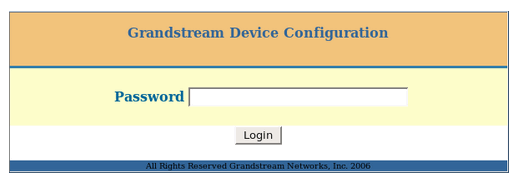
Log in Page:
Basic Settings (part1):
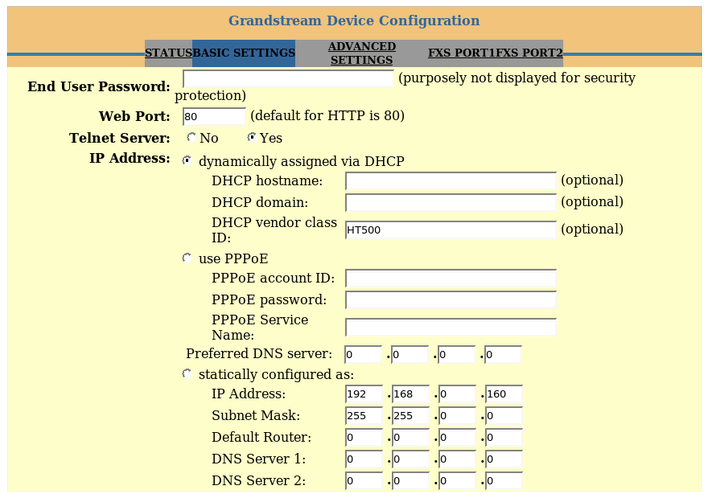
* End User Password - Password to access the Web Configuration Menu. This field is case sensitive with a maximum length of 25 characters.
* Web Port - By default, HTTP uses port 80. This fieldis for customizable web port.
* Telnet Server - Default is set to Yes."
* IP Address DHCP Mode - all the field values for the Static IP mode are not set (even though they are still saved in the Flash memory.) The HandyTone-502 acquires its IP address from the first DHCP server it finds from the LAN it is connected.
Static IP Mode - configure the IP address, Subnet Mask, Default Router IP address, DNS Server 1(primary), DNS Server 2(secondary) fields. These fields set to zero by default.
Static IP Mode - configure the IP address, Subnet Mask, Default Router IP address, DNS Server 1(primary), DNS Server 2(secondary) fields. These fields set to zero by default.
* DHCP hostname - This option specifies the name of the client. This field is optional but may be required by some Internet Service Providers. Default is blank.
* DHCP domain - This option specifies the domain name that client should use when resolving hostnames via the Domain Name System. Default is blank.
* DHCP vendor class ID - Used by clients and servers to exchange vendor-specific information. Default is HT500.
* PPPoE account ID - PPPoE username. Necessary if ISP requires you to use a PPPoE (Point to Point Protocol over Ethernet) connection.
* PPPoE password - PPPoE account password.
* PPPoE Service Name - This field is optional. If your ISP uses a service name for the PPPoE connection, enter the service name here. Default is blank.
Basic Settings (part2):
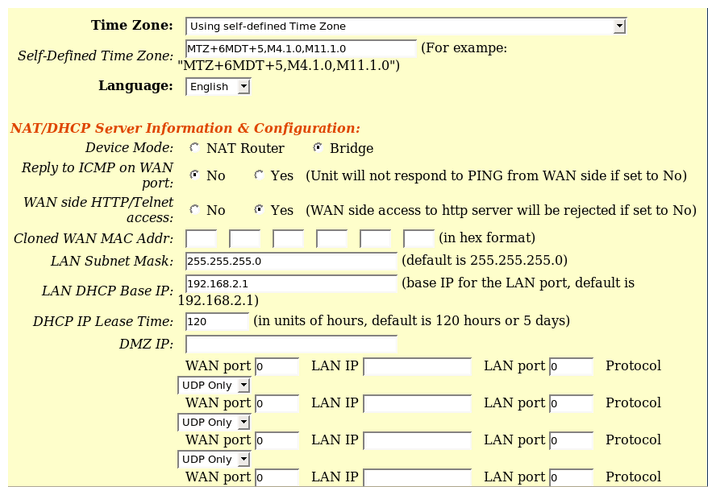
* Time Zone - Controls how the date/time is displayed according to the specified time zone.
* Self Defined Time Zone - The syntax is: std offset dst[offset],start[/time],end[/time]. Default is set to: MTZ+6MDT+5,M3.2.0,M11.1.0
* Language - Languages supported with voice prompt.
* Device Mode - This parameter controls whether the device is working in NAT router mode or Bridge mode. Save the setting and reboot prior to configuring HT-502.
* Enable UPnP support - If set to "Yes", the Grandstream HandyTone-502 would act as an UPnP (Universal Plug n Play) gateway for your UPnP enabled applications.
* Reply to ICMP on WAN port - If set to "Yes", the HandyTone-502 will respond to the PING command from other computers, but it is also ulnerable to the DOS attack. Default is No.
* WAN side HTTP/Telnet Access - If set to "Yes", user can access the configuration page through the WAN port, instead of through the "PC" port. Warning: this configuration is less secure than default option. Default is No.
Basic Settings (part3):
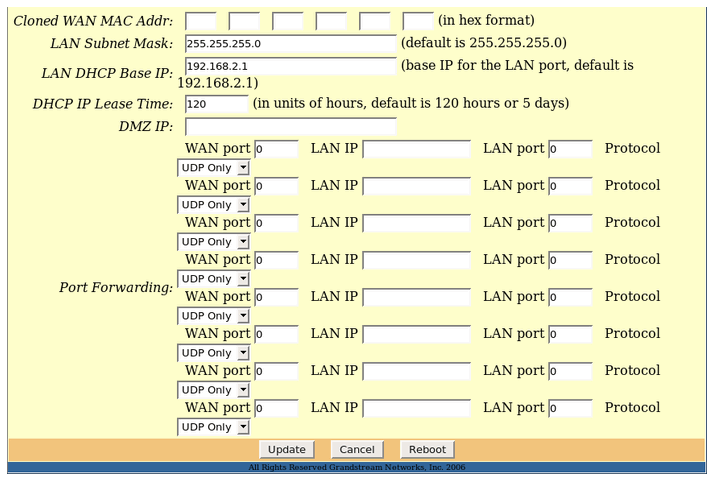
* Cloned WAN MAC Address - This allows you to change/set the MAC address on the WAN interface.
* LAN Subnet Mask - Sets the LAN subnet mask. Default value is 255.255.255.0
* LAN DHCP Base IP - Base IP for the LAN port, which functions as a Gateway for the subnet. The default value is 192.168.2.1
* DHCP IP Lease Time - The value is set in units of hours. The default value is 120 hrs (5 days). The time IP address is assigned to the LAN clients.
* DMZ IP - Forward all WAN IP traffic to a specific IP address of no matching port is sued by HandyTone-502 or defined in port forwarding.
* Port Forwarding - Forwards a matching (TCP/UDP) port to a specific LAN IP address with a specific (TCP/UDP) port.
Status page:
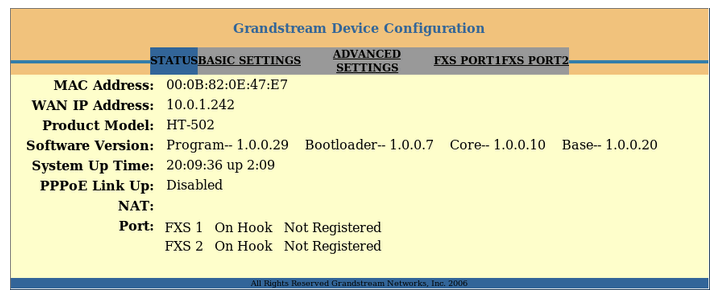
* MAC Address - The device ID in HEX format. This is needed for ISP troubleshooting. Note that there are separate MAC addresses for the WAN side and the LAN side.
* WAN IP Address - Shows WAN IP address of HandyTone-502.
* Product Model - Contains the product model info.
* Software Version - Program: This is the main software release. Boot and Loader are seldom changed.
* System Up Time - Shows system up time since the last reboot.
* PPPoE Link Up - Indicates whether the PPPoE connection is up if the HT-502 is connected to a DSL modem.
* NAT - Indicates to type of NAT connection used by the HandyTone-502 via its WAN port. Based on STUN protocol.
* Port Status - Shows some information regarding the individual FXS ports.
Advanced Settings (part1):
The password for the Advanced user is case sensitive and the factory default password - "admin".
Advanced user configuration includes the end user configuration and the advanced configurations including: 1) SIP configuration; 2) Codec selection; 3) NAT Traversal Setting; 4) other miscellaneous configuration. HandyTone-502 each FXS SIP account has its own configuration page. Those configurations are identical.
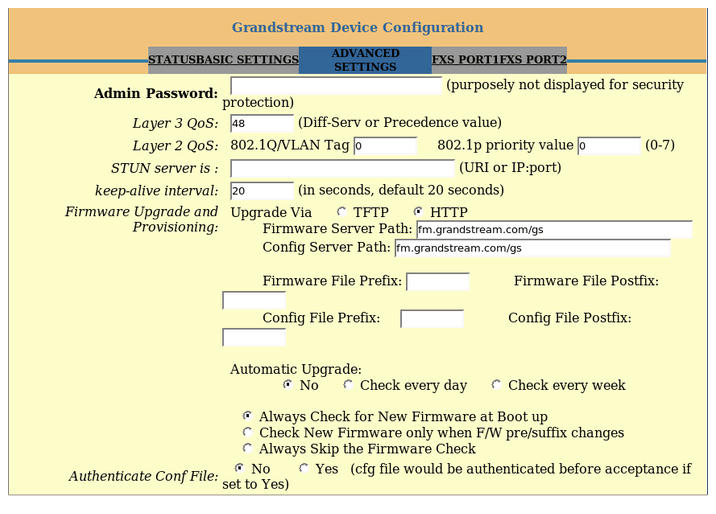
* Admin Password - This contains the password to access the Advanced Web Configuration page. This field is case sensitive. Only the administrator can configure the "Advanced Settings" page. Password field is purposely left blank for security reasons after clicking update and saved. The maximum length of the password is 25 characters.
* Layer 3 QoS - This field defines the layer 3 QoS parameter which can be the value used for IP Precedence or Diff-Serv or MPLS. Default is 48.
* STUN Server - IP address or Domain name of the STUN server.
* Keep-alive interval - This parameter specifies how often the HandyTone-502 sends a blank UDP packet to the SIP server in order to keep the "hole" on the NAT open. Default is 20 seconds. The default value is 20 seconds.
* Firmware Upgrade and Provisioning - Enables HandyTone-502 to download firmware or configuration file through either the TFTP or HTTP server.
* Via TFTP Server - This is the IP address of the configured TFTP server. If selected and it is non-zero or not blank, the HT-502 retrieves the new configuration file or new code image from the specified TFTP server at boot time. After 4 attempts, the system will timeout and will start the boot process using the existing code image in the Flash memory. If a TFTP server is configured and a new code image is retrieved, the new downloaded image is saved into the Flash memory.
* Via HTTP Server - The URL for the HTTP server used for firmware upgrade and configuration via HTTP. Note: If Auto Upgrade is set to No, HandyTone-502 will only do HTTP download once at boot up.
* Firmware Server Path - IP address or domain name of firmware server.
* Config Server Path - IP address or domain name of configuration server.
* Firmware File Prefix - The default setting is blank. If configured, HandyTone-502 will request firmware file with the prefix. This setting is useful for ITSPs. End users should keep it blank.
* Firmware File Postfix - The default setting is blank. End users should keep it blank.
* Config File Prefix - The default setting is blank. End users should keep it blank.
* Config File Postfix - The default setting is blank. End users should keep it blank.
* Automatic Upgrade - Choose "Yes" to enable automatic upgrade and provisioning. In "Check for new firmware every" field, enter the number of days to enable HandyTone-502 to check the server for firmware upgrade or configuration in the defined period of days. When set to No, HT-502 will only do upgrade once at boot up. "Always check for New Firmware." Check New Firmware only when F/W pre/suffix changes.
* Authenticate Conf File - If set to Yes, config file is authenticated before acceptance. This protects the configuration from an unauthorized change.
* Firmware Key - Used for firmware encryption. Should be 32 digit in hexadecimal representation. End users should keep it blank.
* Lock Keypad update - If set to "Yes", the configuration update via keypad is disabled.
* Disable Voice Prompt - Default is No.
* Disable Direct IP-IP Calling - Default is No.
* NTP server - URL or IP address of the NTP (Network Time Protocol) server. Used by the phone to synchronize the date and time.
* Syslog Server - The IP address or URL of System log server. This feature is especially useful for the ITSPs (Internet Telephone Service Providers).
* Syslog Level
1) product model/version on boot up (INFO level)
2) NAT related info (INFO level)
3) sent or received SIP message (DEBUG level)
4) SIP message summary (INFO level)
5) inbound and outbound calls (INFO level)
6) registration status change (INFO level)
7) negotiated codec (INFO level)
8) Ethernet link up (INFO level)
9) SLIC chip exception (WARNING and ERROR levels)
The Syslog uses USER facility. In addition to standard Syslog payload, it contains the following components:
GS_LOG:[device MAC address error code] error message
FXS Port1 (part1):
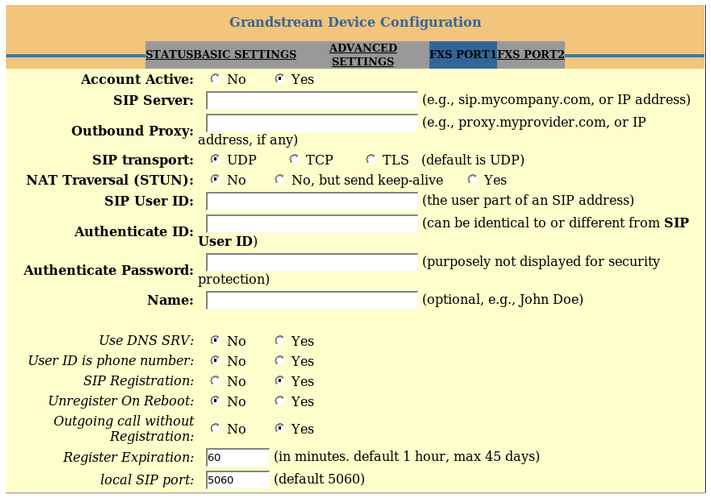
* Profile Active - When set to Yes the FXS port is activated.
* SIP Server - SIP Server's IP address or Domain name, provided by a Internet Telephony Service Provider (ITSP).
* Outbound Proxy - IP address or Domain name of Outbound Proxy, or Media gateway, or Session Border Controller. Used by HT-502 for firewall or NAT penetration in different network environments. If symmetric NAT is detected, STUN will not work and ONLY outbound proxy can correct the problem.
* SIP transport - Users can select one of the following: UDP(User Datagram Protocol); TCP(Transmission Control Protocol); TLS(Transport Layer Security).
* NAT Traversal (STUN) - This parameter defines whether or not the HandyTone-502 NAT traversal mechanism is activated. If activated (by choosing "Yes") when a STUN server is also specified, the HT-502 performs in accordance to the STUN client specification. Using this mode, the embedded STUN client will detect the firewall/NAT(if used) and its type. If the detected NAT is a Full Cone, Restricted Cone, or a Port-Restricted Cone, the HT-502 will use its mapped public IP address and port in all of its SIP and SDP(Session Description Protocol) messages. If the NAT Traversal field is set to "Yes" with no specified STUN server, the HT-502 will periodically (every 20 seconds or so) send a blank UDP packet (with no payload data) to the SIP server to keep the "hole" on the NAT open.
* SIP User ID - User account information, provided by VoIP service provider(ITSP). Usually in the form of digits similar to phone number or actually a phone number.
* Authenticate ID - SIP service subscriber's Authenticate ID used for authentication. Can be identical to or different from SIP User ID.
* Authenticate Password - SIP service subscriber's account password.
* Name - SIP service subscriber's name for Caller ID display.
* Use DNS SRV - Default is No. If set to Yes the client will use DNS SRV to look up server.
* User ID is Phone Number - If the HT-502 has an assigned PSTN telephone number, this field should be set to Yes. Otherwise, set it to No.
* SIP Registration - Controls whether the HT-502 needs to send REGISTER messages to the proxy server. The default setting is Yes.
* Unregister on Reboot - The default setting is No. If set to Yes, the SIP user's registration information will be cleared on reboot.
* Outgoing Call w/o Registration - The default setting is No. If set to Yes, the user can place outgoing calls even when not registered (if allowed by ITSP), but is unable to receive incoming calls.
* Register Expiration - This parameter allows the user to specify the time frequency (in minutes) the HT-502 refreshes its registration with the specified register. The default interval is 60 minutes (or 1 hour). The maximum interval is 65535 minutes (about 45 days).
* Local SIP port - Defines the local SIP port the HT-502 will listen and transmit. The default value for FXS port1 is 5060. The default value for FXS port2 is 5062.
FXS Port1 (part2):

* Local RTP port - Defines the local RTP-RTCP port pair the HT-502 will listen and transmit. It is the base RTP port of channel 0. When configured, channel 0 uses this port_value for RTP and the port_value+1 for its RTCP; channel 1 uses port_value+2 for RTP and port_value+3 for its RTCP. The default value for FXS port1 is 5004. The default value for FXS port2 is 5012.
* Use Random Port - This parameter forces the random generation of both the local SIP and RTP ports when set to Yes. This is usually necessary when multiple HT-502 are behind the same NAT.
* Refer to Use Target Contact - The default setting is No. If set to Yes, then for Attended Transfer, the "Refer-To" header uses the transferred target's Contact header information.
* DTMF Payload Type - Sets the payload type for DTMF using RFC2833.
* DTMF in-audio - Send DTMF as inband (in-audio).
* DTMF via RFC2833 - Send DTMF via RTP (according to RFC2833).
* DTMF via SIP INFO - Send DTMF via SIP INFO message.
* Send Flash Event - The default setting is No. If set to Yes, flash will be sent as DTMF event.
* Enable Call Features - The default setting is Yes. If Yes, call features using star codes will be supported locally)."
* Offhook Auto-Dial - This parameter allows users to configure a User ID or extension number to be automatically dialed upon off-hook. Only the user part of a SIP address needs is entered here. The HT-502 will automatically append the "@" and the host portion of the corresponding SIP address.
* Proxy-Require - SIP extension to notify SIP server that the unit is behind the NAT/Firewall.
* Use NAT IP - NAT IP address used in SIP/SDP message. Default is blank.
* Distinctive Ring Tone - Custom Ring Tone 1 to 3 with associate Caller ID: when selected, if Caller ID is configured, then the device will ONLY use this ring tone for incoming call with the chosen Caller ID. System Ring Tone is used for all other calls. When selected but no Caller ID is configured, the chosen ring tone will be used for all incoming calls.
* Disable Call Waiting - The default setting is No.
* Disable Call Waiting Tone - The default setting is No. This is for disabling the shutter Call Waiting Tone when a Call Waiting call arrives. The CWCID will still be displayed.
* Ring Timeout - An Incoming call will stop ringing when not picked up given a specific period of time.
* No Key Entry Timeout - The dafault setting is 4 seconds.
FXS Port1 (part3):
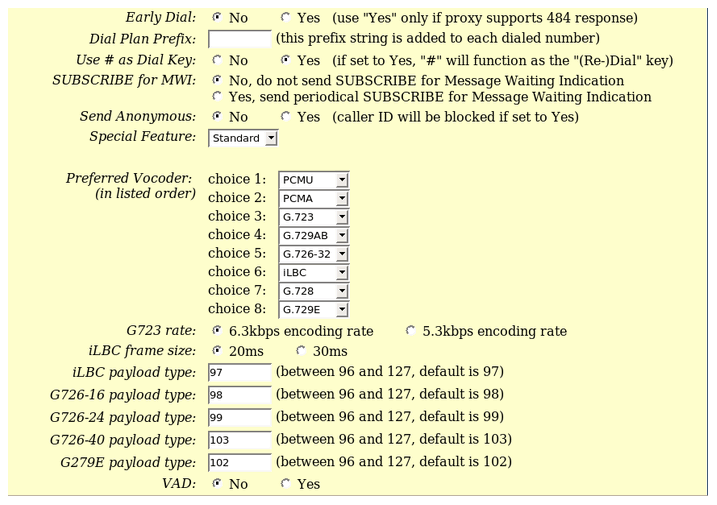
* Early Dial - The default setting is No. Use only if proxy supports 484 response. This parameter controls whether the phone will send an early INVITE each time a key is pressed when a user dials a number. If set to Yes, an INVITE is sent using the dial-number collected thus far; Otherwise, no INVITE is sent until the "(Re)-Dial" button is pressed or after about 5 seconds have elapsed if the user forgets to press the "(Re)-Dial" button. The Yes option should be used ONLY if there is a SIP proxy configured and the proxy server supports 484 incomplete Address response. Otherwise, the call is likely to be rejected by the proxy (with a 404 Non Found error). This feature is NOT designed to work with and should NOT be enabled for direct IP-to-IP calling.
* Dial Plan Prefix - Sets the prefix added to each dialed number.
* Use # as Dial Key - Allows users to configure the "#" key as the "Send" (or "Dial") key. If set to Yes, "#" will send the number. In this case, this key is essentially equivalent to the "Dial" key. If set to No, this "#" key can be included as part of number.
* Dial Plan Dial Plan Rules:
1) Accept Digits: 1,2,3,4,5,6,7,8,9,0
2) Grammar: x - any digit from 0-9;
a) xx+ - at least a 2 digit number;
b) ^ - exclude;
c) [3-5] - any of the digits 3,4, or 5;
d) [147] - any of the digits 1,4, or 7;
e) <2=011> - replace digit 2 with 011 when dialing.
Example 1: {[369]11 | 1617xxxxxx} - Allow 311, 611, 911, and any 10 digit numbers of leading digits 1617.
Example 2: {^1900x+ | <=1617>xxxxxxx} - Block any number of leading digits 1900 and add prefix 1617 for any dialed 7 digit numbers.
Example 3: {1xxx[2-9]xxxxxx | <2=011>x+} - Allow any length of number with leading digit 2 and 10 digit-numbers of leading digit 1 and leading exchange number between 2 and 9; If leading digit is 2, replace leading digit 2 with 011 before dialing.
3) Default: Outgoing - {x+}.
* Subscribe for MWI - The default setting is No. When set to Yes, a SUBSCRIBE for Message Waiting Indication will be sent periodically.
* Send Anonymous - If this parameter is set to Yes, the "From" header along with Privacy and P_Asserted_Identity headers in outgoing INVITE message will be set to anonymous, blocking Caller ID.
* Anonymous Call Rejection - The default setting is No. If set to Yes, incoming calls with anonymous Caller ID will be rejected with 486 Busy message.
* Special Feature - The default setting is Standard. Choose the selection to meet some special requirements from Softswitch vendors.
* Preferred Vocoder - The HT-502 supports up to 5 different Vocoder types including G.711 a-/u-law, G.726 (supports bit rates 16, 24, 32 and 40), G.723.1, G.729/A/B/E and iLBC. The user can configure Vocoders in a preference list that will be included with the same preference order in SDP message. The first Vocoder is entered by choosing the appropriate option in "Choice 1". The last Vocoder is entered by choosing the appropriate option in "Choice 8".
* G723 Rate - Defines the encoding rate for G.723 Vocoder. By default, 6.3 kbps rate is chosen.
* iLBC Frame Size - Sets the iLBC frame size in 20ms or 30ms.
* iLBC Payload type - Defines payload type for iLBC. Default value is 97. The valid range is between 96 and 127.
* G726-16 Payload type - The default setting is 98. Range is from 96 to 127.
* G726-24 Payload type - The default setting is 99. Range is from 96 to 127.
* G724-32 Payload type - The default setting is 100. Range is from 100. Range is from 96 and 127.
* G726-40 Payload type - The default setting is 103. Range is from 96 and 127.
* G729E Payload type - The default setting is 102. Range is from 96 to 127.
* VAD - Default is No. VAD allows detecting the absence of audio and conserve bandwidth by preventing the transmission of "silent packets" over the network.
* Symmetric RTP - The default setting is No. When set to Yes, the device will change the destination to send RTP packets to the source IP address and port of the inbound RTP packet last received by the device.
FXS Port1 (part4):
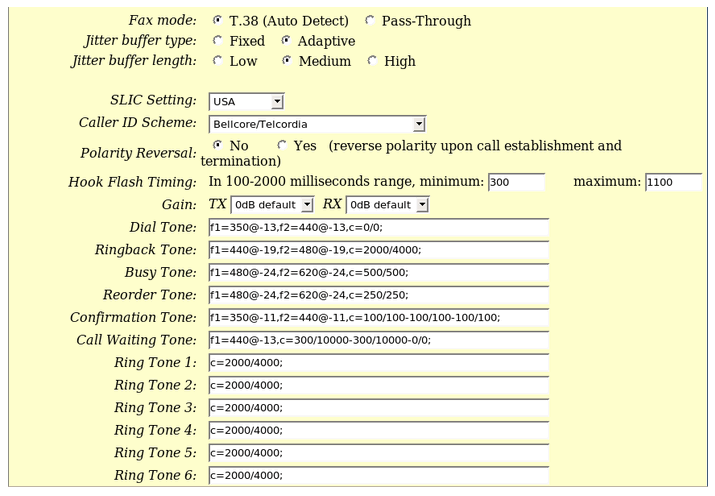
* Fax Mode - T.38 (Auto Detect) FoIP by default, or Pass-Through (must use codec PCMU/PCMA).
* Fax Tone Detection Mode - The default setting is Callee. This decides whether Caller or Callee send out the re-INVITE for T.38 or Fax Pass-Through.
* Jitter Buffer Type - Select either Fixed or Adaptive based on network conditions.
* Jitter Buffer Length - Select Low, Medium or High based on network conditions.
* SLIC Setting - Depending on standard phone type (and location).
* Caller ID Scheme - Bellcore/Telcordia; ETSI-FSK; ETSI-DTMF; SIN 227-BT; NTT Japan.
FXS Port1 (part5):
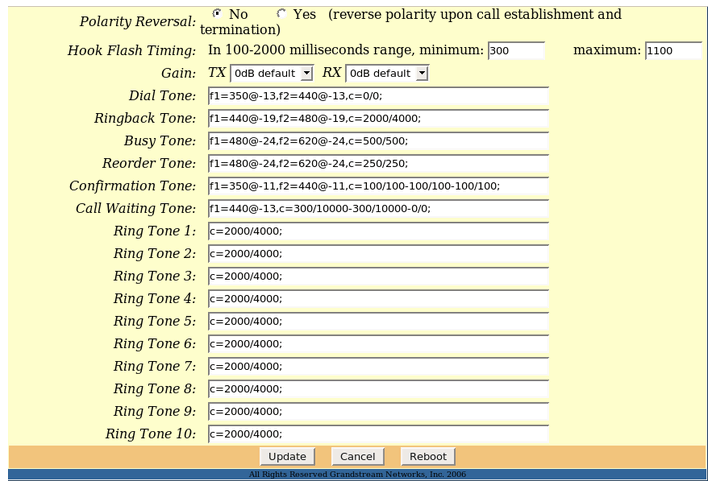
* Polarity Reversal - The default setting is No. If set to Yes, polarity will be reversed upon call establishment and termination.
* Loop Current Disconnect - Set it to Yes, if the traditional PBX you are using with HT-502 uses this method for signalling call termination. The default setting is No.
* Hook Flash Timing - Time period when the cradle is pressed (Hook Flash) to simulate FLASH. To prevent unwanted activation of the Flash/Hold and automatic phone ring-back, adjust this time value.
* Gain - Handset volume adjustment.
RX is for receiving volume
TX is for transmitting volume
The default values are 0dB for both parameters. Loudest volume: +6dB. Lowest volume: -6dB.
* Call Progress/Ring Tones - Configure ring or tone frequencies according to preference. Tones by default are set to North American frequencies. Frequencies should be configured with known values to avoid uncomfortable high pitch sounds.
Save Configuration Page

Click the "Update" button at the Configuration page to save the changes to the HT-502 configuration. The screenshot above confirms that the changes are saved. Reboot your HandyTone-502 in order for the changes take effect.
9. Rebooting the phone
Remotely

By clicking the "Reboot" button at the bottom of the configuration page, you will remotely reboot the HT-502. When it finished, re-login to the HT-502 after waiting for about 30 seconds.
10. Software upgrade
10.1 Firmware upgrade through TFTP/HTTP
The Firmware upgrade is in the "Advanced Settings configuration page. It can be done via either TFTP or HTTP.
To upgrade via TFTP or HTTP
, the "Firmware Upgrade and Provisioning upgrade via" field must be set to TFTP or HTTP, respectively. "Firmware Server Path" has to be set to a valid URL of a TFTP or HTTP server.Notes:
TFTP server in IP address format can be configured via IVR. Please refer to section CONFIGURATION GUIDE for instructions. If TFTP server is in FQDN format, it must be set via web configuration interface.
End users recommended using the below TFTP server. The address is: http://www.grandstream.com/firmware.html .
Once a "Firmware Server Path" is set, user has to update the settings and reboot the device. If the configured firmware server is found and a new code image is available, the HT-502 will attempt to retrieve the new image files by downloading them into the HT-502's SRAM. During this stage, the HT-502's LEDs will blink until the checking/downloading process is completed. Upon verification of checksum, the new code image will then be saved into the Flash. If TFTP/HTTP fails for any reason, the HT-502 will stop the TFTP/HTTP process and simply boot using the existing code image in the flash.
Firmware upgrade may take as long as 1 to 20 minutes over Internet, or just 20+ seconds if it is performed on a LAN. It is recommended to conduct the firmware upgrade in a controlled LAN environment if possible. For users who do not have a local firmware upgrade server, Grandstream provides a NAT-friendly TFTP server on the public Internet for firmware upgrade.
Alternatively, the user can download a free TFTP or HTTP server and conduct local firmware upgrade. The latest official release can be downloaded from http://www.grandstream.com/firmware.html
Directions to Download TFTP Server:
1) Unzip the file and put all of them under the root directory of the TFTP server.
2) Put the PC running the TFTP server and the HT-502 device in the same LAN segment.
3) Please go to File -> Configure -> Security to change the TFTP server's default setting from "Receive Only" to "Transmit Only" for the firmware upgrade.
4) Start the TFTP server in the phone's web configuration page.
5) Configure the Firmware Server Path with the IP address of the PC.
6) Update the change and reboot the unit.
User can also choose to download the free HTTP server from http://httpd.apache.org
10.2 Configuration File Download
Grandstream SIP Device can be configured via Web Interface or via Configuration File through TFTP or HTTP. "Config Server Path" is the TFTP or HTTP server path for configuration file. It needs to be set to a valid URL, either in FQDN or IP address format. The "Config Server Path" can be the same or different from the "Firmware Server Path".
A configuration parameter is associated with each particular field in the web configuration page. A parameter consists of a Capital letter P and 2 to 3 digit numeric numbers. Sample: P2 associated with "Admin Password" in the "Advanced Settings" page. For a detailed parameter list, please refer to the corresponding firmware release configuration template.
When Grandstream Device boots up or reboots, it will issue a request for configuration file named "cfgxxxxxxxxxxxx", where "xxxxxxxxxxxx" is the LAN side MAC address of the device.
10.3 Firmware and Configuration File Prefix and Postfix
Firmware Prefix and Postfix allows the device to download the firmware name with the matching Prefix and Postfix. This makes it the possible to store ALL of the firmware with different version in one single directory. Similarly, Config File Prefix and Postfix allows the device to download the configuration file with the matching Prefix and Postfix. Thus multiple configuration files for the same device can be stored in one directory.
In addition, when the field "Check New Firmware only when F/W pre/suffix changes" is set to Yes, the device will only issue firmware upgrade request if there are changes in the firmware Prefix or Postfix.
10.4 Managing Firmware and Configuration File Download
When "Automatic Upgrade" is set to Yes, the Service Provider can use P193 (Auto Check Interval, in minutes, minimum default setting is 60 minutes) to have the devices periodically check with either Firmware Server or Config Server, whenever they are defined. This allows the device to periodically check if there are any new changes need to be taken ot a scheduled time. By defining different intervals in P193 for different devices, the Service Provider can spread the Firmware or Configuration File download in minutes to reduce the Firmware or Provisioning Server load at any given time.
11. Restore Factory Default Settings
11.1 Reset via the Reset button
1) Locate the button, which is next to the power connection.
2) Insert a pin in this hole, and press for about 10 seconds. The LEDs for LAN and WAN will indicate the reset.
3) All settings are restored to factory settings.
11.2. Reset via the IVR
1) Find the MAC address of the device. It is a 12 digits HEX number located on the bottom of the HT-502.
2) Encode the MAC address. Mapping:
0-9 - 0-9
A - 22
B - 222
C - 2222
D - 33
E - 333
F - 3333
Example: if the MAC address is 000b6500efe6, you should encode as "000222650033333333336".
3) To perform factory reset:
* Pick up the headset and dial "***" for voice prompt.
* Enter "99" and get the voice prompt "Reset".
* Enter the encoded MAC address of the device.
* Wait for 20 seconds. The device will reboot automatically and restore to factory default setting.
Note:
1) Factory Reset will be disabled if the "Lock keypad update" is set to Yes.
2) Please be aware by default the HT-502 WAN side HTTP access is disabled. After a factory reset, the device's web configuration page can be accessed only from its LAN port.
| Add Comment |
Latest Headlines:
-
T.38 faxing with Zoiper 2.15 is now easier than ever
section: voip software
-
Asterisk 1.4.21 Released
section: Asterisk
-
Asterisk 1.4.20 Released
section: Asterisk
-
Asterisk 1.4.20-rc2 Released
section: Asterisk
-
Asterisk 1.4.20-rc1 Now Available
section: Asterisk
- News Archives (older news)
Latest Tutorials:
-
Sending Fax from Zoiper to Zoiper using T.38
added 08/Dec/2008 18:16
-
VMAuthenticate (dialplan application)
added 01/Mar/2008 15:57
-
Siptronic ST-530
added 06/Nov/2007 17:57
-
Siemens C455 IP hardphone
added 05/Nov/2007 10:24
-
Zoiper
added 22/Oct/2007 17:53
Latest Comments:
-
https://run72.raiselysite.com/2026-usa/p...
tutorial: General Installation
-
https://archive.org/download/free-4k-O-R...
tutorial: Installation on CentOS
-
https://www.researchhub.com/post/11763/w...
tutorial: General Installation
-
https://peenak5-chonrong.readme.io/refer...
tutorial: Read (dialplan application)
-
https://afas-global.org/wp-content/uploa...
tutorial: SIP with NAT or Firewalls