


6.1.1.9. TIMEOUT(response) (dialplan function) - NEW
1. TIMEOUT(response) - this function allows you to limit the maximum time for waiting a response.
NOTE:Information about the Asterisk functions could be obtained by typing the show functions command.
Information about a particular function could be obtained by typing the show function <function name> on the Asterisk CLI command.
NOTE: In Asterisk versions 1.2 and up there are several applications which are mark as deprecated and which are no longer supported.
These applications will now become functions and these functions will be used in combination with the Set application.
You have to know that their functionality will be the same, but with a different syntax.
The TIMEOUT(response) function is one of those new functions which will replace the old applications. In this tutorial we will show you its syntax and possible usage.
Check out the old syntax of the ResponseTimeout application here
Syntax:
List of the possible options
Purpose and usage
Prerequisites
Asterisk PBX configurations
iax.conf Configurations
extensions.conf Configurations

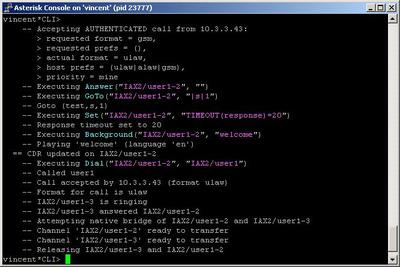
2. Screenshots of what you could see on the CLI of the Asterisk PBX
3. Additional information
4. Uploaded files
TIMEOUT_response.tar - configuration files
5. Similar dialplan functions
NOTE:Information about the Asterisk functions could be obtained by typing the show functions command.
Information about a particular function could be obtained by typing the show function <function name> on the Asterisk CLI command.
NOTE: In Asterisk versions 1.2 and up there are several applications which are mark as deprecated and which are no longer supported.
These applications will now become functions and these functions will be used in combination with the Set application.
You have to know that their functionality will be the same, but with a different syntax.
The TIMEOUT(response) function is one of those new functions which will replace the old applications. In this tutorial we will show you its syntax and possible usage.
Check out the old syntax of the ResponseTimeout application here
Syntax:
Set(TIMEOUT(response)=value)
List of the possible options
value - maximum time for response in seconds.
Purpose and usage
With the help of this application you can limit the time which the caller has to enter an extension.
The main usage of this application is in IVR menus.
Below, we will give you an example.
The main usage of this application is in IVR menus.
Below, we will give you an example.
Prerequisites
To use this application you need a working Asterisk PBX with registered users in iax.conf, sip.conf or mgcp.conf(It depends on which protocol you would like to use) and made extensions. We are using Asterisk version1.2.1.
To see how the application works we recommend you to use our IAX softphone Idefisk. You could download it from here. Please also read our tutorial to learn how to configure it to work with Asterisk PBX.
To see how the application works we recommend you to use our IAX softphone Idefisk. You could download it from here. Please also read our tutorial to learn how to configure it to work with Asterisk PBX.
Asterisk PBX configurations
iax.conf Configurations
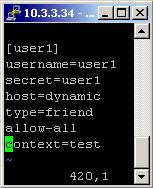
We need to create one user in the iax.conf file. This is because we are going to use the IAX2 protocol. If you want to use other protocol, such as SIP or MGCP, you have to do the configurations below respectively in sip.conf or mgcp.conf.
So, we have registered the user user1
Type=friend means that this user can make and receive calls. Host=dynamic means that the IP is not static but dynamic through a DHCP server. Allow=all means that the line which this user will use, could support all audio codecs. Context=test - this shows that this user is working with the extensions in this context of the configuration file extensions.conf.
Type=friend means that this user can make and receive calls. Host=dynamic means that the IP is not static but dynamic through a DHCP server. Allow=all means that the line which this user will use, could support all audio codecs. Context=test - this shows that this user is working with the extensions in this context of the configuration file extensions.conf.
extensions.conf Configurations
Now lets take a look at the extensions.conf file.
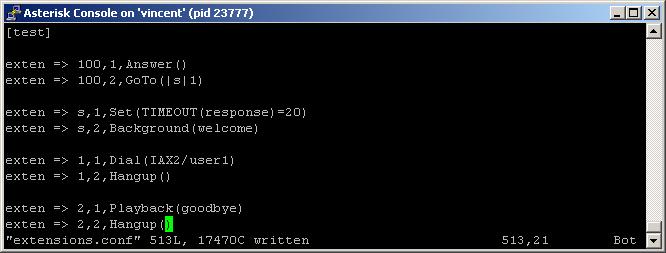
On the picture above you could see our extensions.conf file.
In this example, when somebody dials 100, the call will be answered by the Answer application.
The next executed extension will be the one, which contains the GoTo application. As arguments in its brackets we have set the following - |s|1. This will redirect the call to the special extension s with priority 1 in the same context test.
So now the call is in a small IVR menu and the first executed application will be the one, which will set the response timeout.
For the purpose we need the Set application and we will type as arguments in its brackets the following: TIMEOUT(response)=20. This will set the response timeout to 20 seconds. By default it is 15. So the caller has maximum time of 20 seconds to choose which section of the menu he/she wants to visit and to press the corresponding number from the keypad. If he/she did not manage to enter this number within 20 seconds then the system will try to execute the timeout extension (t extension). If such extension does not exist - the line will be hung up.
Next thing to be executed is the Background application. Thanks to it, we will play a sound message to the caller. Something like this: Thank you for using our services, please press one for connecting with operator, two for.....etc.
If the caller press 1, then thanks to the Dial application, the call will be connected to the user user1 through the IAX2 channel.
If the caller press 2, then thanks to the Playback application we will play to him/her a goodbye message.
NOTE: The function TIMEOUT(response) is case sensitive. You always have to write it in your dialplans as you see it in our tutorial.
In order to be sure that the Asterisk PBX will hang up the line, when the conversation is over, it is a good idea to use the Hangup application.
In this example, when somebody dials 100, the call will be answered by the Answer application.
The next executed extension will be the one, which contains the GoTo application. As arguments in its brackets we have set the following - |s|1. This will redirect the call to the special extension s with priority 1 in the same context test.
So now the call is in a small IVR menu and the first executed application will be the one, which will set the response timeout.
For the purpose we need the Set application and we will type as arguments in its brackets the following: TIMEOUT(response)=20. This will set the response timeout to 20 seconds. By default it is 15. So the caller has maximum time of 20 seconds to choose which section of the menu he/she wants to visit and to press the corresponding number from the keypad. If he/she did not manage to enter this number within 20 seconds then the system will try to execute the timeout extension (t extension). If such extension does not exist - the line will be hung up.
Next thing to be executed is the Background application. Thanks to it, we will play a sound message to the caller. Something like this: Thank you for using our services, please press one for connecting with operator, two for.....etc.
If the caller press 1, then thanks to the Dial application, the call will be connected to the user user1 through the IAX2 channel.
If the caller press 2, then thanks to the Playback application we will play to him/her a goodbye message.
NOTE: The function TIMEOUT(response) is case sensitive. You always have to write it in your dialplans as you see it in our tutorial.
In order to be sure that the Asterisk PBX will hang up the line, when the conversation is over, it is a good idea to use the Hangup application.
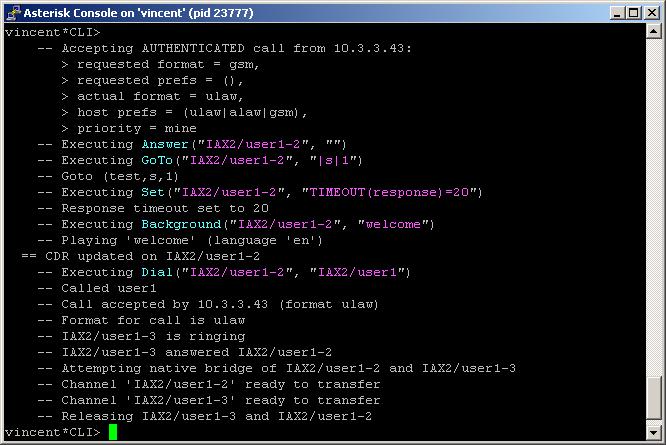
2. Screenshots of what you could see on the CLI of the Asterisk PBX
3. Additional information
For more information about extensions.conf you can check here.
For more information about iax.conf you can check here.
This application is tested with our IAX softphone Idefisk. You can download it from here. For more information about this softphone please read our tutorial.
If you would like to test this application with the SIP channel you can read our tutorials about the SIP Softphones to learn how to configure them to work with Asterisk PBX
More information about the Set application could be found here
For more information about iax.conf you can check here.
This application is tested with our IAX softphone Idefisk. You can download it from here. For more information about this softphone please read our tutorial.
If you would like to test this application with the SIP channel you can read our tutorials about the SIP Softphones to learn how to configure them to work with Asterisk PBX
More information about the Set application could be found here
4. Uploaded files
TIMEOUT_response.tar - configuration files
5. Similar dialplan functions
| Add Comment |
Latest Headlines:
-
T.38 faxing with Zoiper 2.15 is now easier than ever
section: voip software
-
Asterisk 1.4.21 Released
section: Asterisk
-
Asterisk 1.4.20 Released
section: Asterisk
-
Asterisk 1.4.20-rc2 Released
section: Asterisk
-
Asterisk 1.4.20-rc1 Now Available
section: Asterisk
- News Archives (older news)
Latest Tutorials:
-
Sending Fax from Zoiper to Zoiper using T.38
added 08/Dec/2008 18:16
-
VMAuthenticate (dialplan application)
added 01/Mar/2008 15:57
-
Siptronic ST-530
added 06/Nov/2007 17:57
-
Siemens C455 IP hardphone
added 05/Nov/2007 10:24
-
Zoiper
added 22/Oct/2007 17:53
Latest Comments:
-
https://bento.me/videa-a-majomember-onli...
tutorial: Configuring IP Phones for use with Asterisk
-
https://bento.me/sledujte-krotitele-duch...
tutorial: Configuring IP Phones for use with Asterisk
-
Women s world cup inside the infamous nu...
tutorial: With PostgreSQL
-
https://bento.me/-verpelicula-culpa-tuya...
tutorial: Request to schedule in the past?!?!
-
https://github.com/challengers-free-on-e...
tutorial: General Installation